Overview:
Summary of the Release
The platform now supports a new workflow trigger, Client Portal File Uploaded, allowing businesses to automatically initiate workflows whenever a contact uploads a document through the Client Portal Shared Documents experience.
What's New? / Key Features / Benefits
New Workflow Trigger: Client Portal File Uploaded
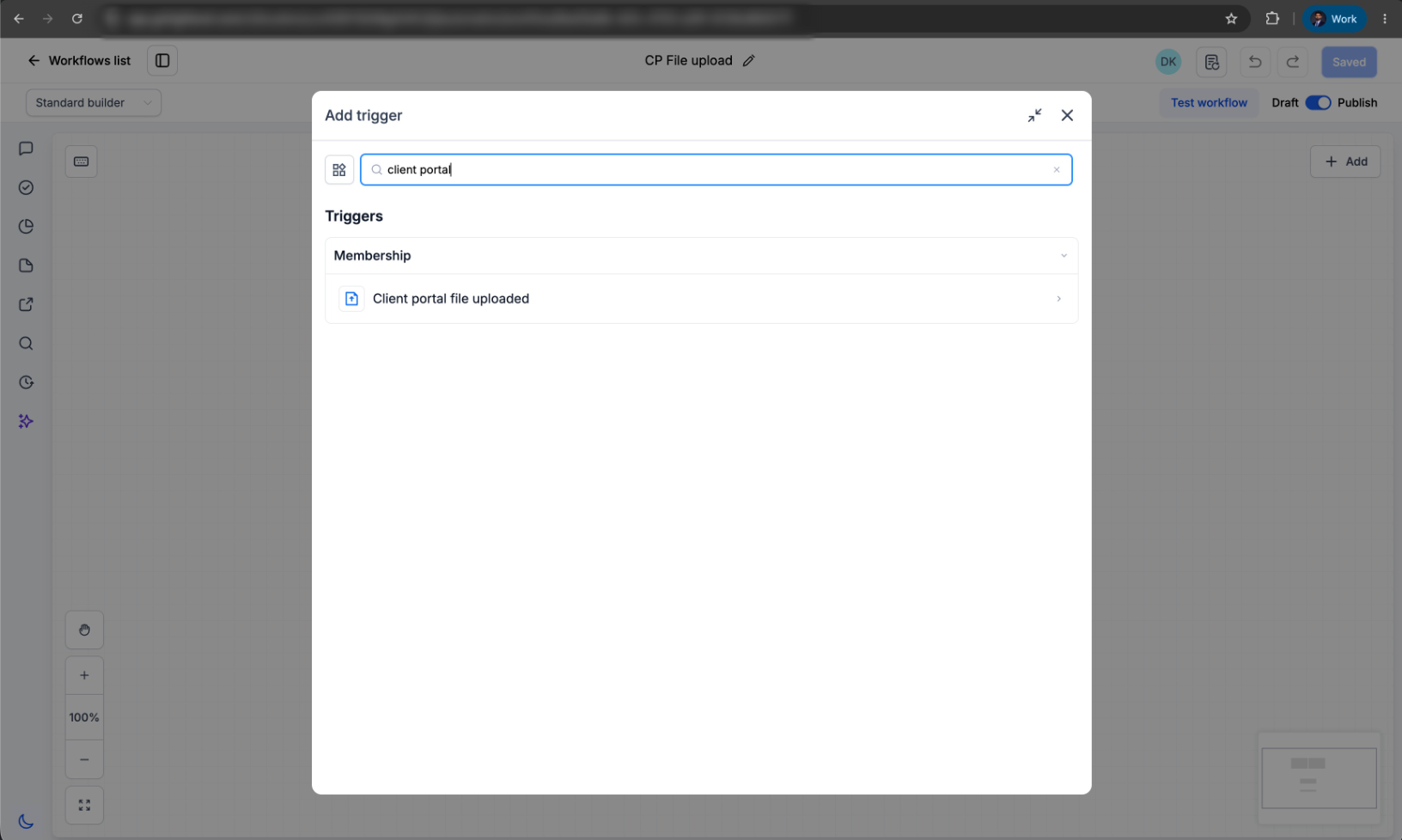
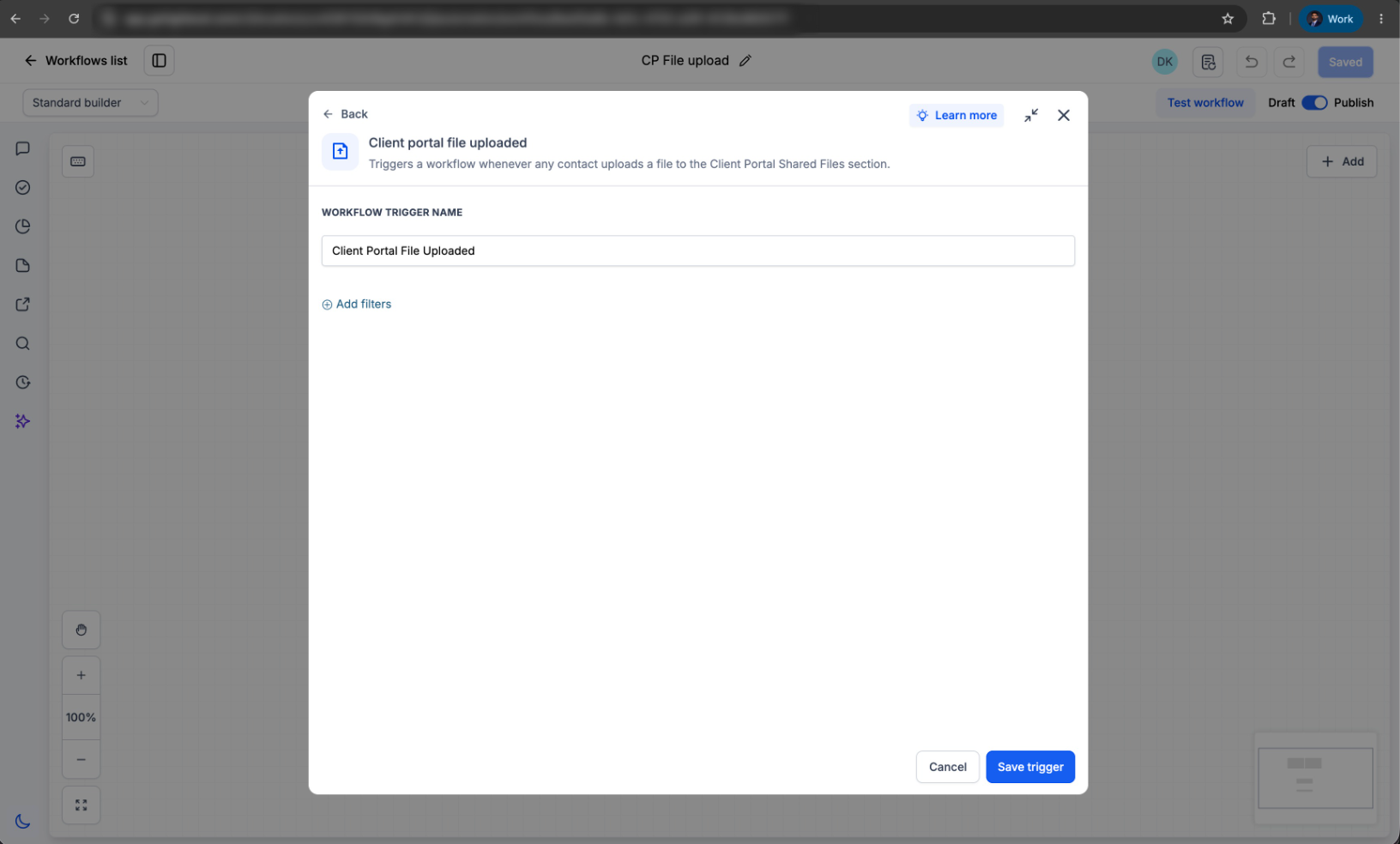
Automatically trigger workflows when a contact uploads a file through the Client Portal Shared Documents experience.
How to Use?
- Navigate to Automation → Workflows.
- Create a new workflow or edit an existing workflow.
- Add the trigger Client Portal File Uploaded.
- Configure the workflow actions as relevant.
- Publish the workflow.
How to share a file with a client through Client Portal
- Navigate to a specific contact.
- Click the Files icon from the right-side navigation panel.
- Upload a file.
- Select the Upload to Client Portal checkbox.
- Save the file.
- The file will become available to the contact within their Client Portal.
-
How to upload a file as a Client Portal user
- Log in to the Client Portal.
- Navigate to the Shared Documents section.
- Click Share File.
- Upload a single file or multiple files (up to 10 files at a time).
- Submit the files.
Multiple file types are supported. Once uploaded, the Client Portal File Uploaded workflow trigger will fire automatically.
This feature closes that automation gap by enabling businesses to:
- Eliminate manual monitoring of uploaded documents
- Reduce operational delays
- Improve compliance and review processes
- Ensure no important uploads are missed
- Create seamless document-driven customer journeys
- Accelerate onboarding and approval workflows
Was this article helpful?
That’s Great!
Thank you for your feedback
Sorry! We couldn't be helpful
Thank you for your feedback
Feedback sent
We appreciate your effort and will try to fix the article